How to leave a review for a product on Selar?
How to Leave a Review as a Customer on Selar
Leaving a review is a great way to share your experience with a product. Follow these detailed steps to submit your review:
Access Your Product Receipt
- Open your web browser and go to the Selar website: Selar.co.
- Log into your account if you haven't already.
Locate Your Purchases
- Once logged in, navigate to your purchases by clicking on this link: View Your Purchases.
- This will take you directly to a list of products you have purchased.
Find the Product You Want to Review
- Browse through your purchase history to locate the specific product you want to review, and click on View Receipt.
Leave a Review
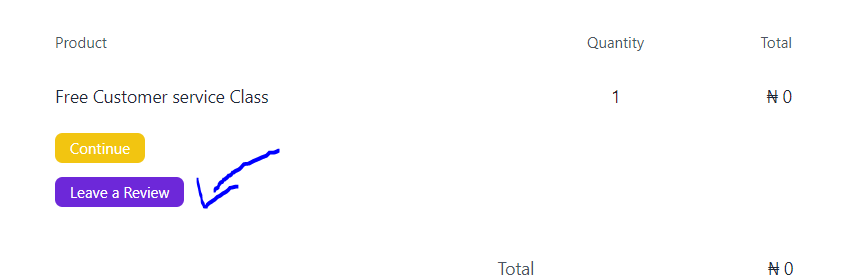
- Open up the receipt, and you should see an option with More Options. Click on it to reveal a “Leave a Review” button, Click on this button.
- A review form will appear, allowing you to rate the product and write your comments.
Submit Your Review
- After filling out the review form, double-check your feedback for any errors.
- Click the “Submit” button to post your review.
Confirmation
- You may receive a confirmation message indicating that your review has been successfully submitted.
Additional Tips
- Be honest and specific in your review to help other customers make informed decisions.
- You can edit or update your review later if your opinion changes.
Following these steps will help you easily leave a review for a product on Selar!
Related Articles
How to give a review on Selar
To leave a review, you must have purchased and used a product or service. If you have, this article is for you! When you buy a product on Selar, you receive a receipt link in the email address you provided during the purchase. This receipt includes a ...
Will Selar promote my product?
Promotion Responsibility Selar does not promote your products for you. As a merchant, it's your responsibility to share your store and product links with potential customers. Sharing Your Links Copy your store/product links and share them on your ...
How to Set up a Booking Product On Selar
How to Set up a Booking Product On Selar To create a booking product on your Selar dashboard, follow these steps: 1. Access the “Add Product” Option After logging into your Selar dashboard, you can add a product in either of these ways: Click the Add ...
Setting Up an Affiliate Challenge on Selar
Setting Up an Affiliate Challenge on Selar Affiliate Challenges let you run a sales competition among your affiliates. You set the rules, timeframe, and rewards, while Selar handles the tracking, leaderboard, and notifications automatically. This ...
🚀 Selar + Telegram Integration Guide
Easily connect your Telegram account to Selar and give your buyers instant access to your groups when they purchase your product. When a customer buys, Selar will automatically add them to your linked Telegram group using a secure invite link. ? ...